It can be quite useful to have Claude Code running on a Raspberry Pi. For instance:
- it can serve as an always-on low-power dev machine that you can SSH into from anywhere.
- It could be a dedicated coding box separate from the main machine.
- If you have, like I do, several self-hosted services or you run your own home lab, it’s great to have the Claude Code running on the same machine so that it can iterate on scripts, backup using rsync and debug things.
- You could also run a bunch of cron jobs setup via Claude Code.
But getting Claude Code running on Raspberry Pi in headless mode is quite painful, or is it?
When I seached online, I found tutorials (for Mac) that basically said grab the OAuth key from the Mac keychain and put that into the config. It works. But for a day or two. Also, what a pain to do. Here is a better way:
Run Claude Code on a Headless Device (Raspberry pi)
This is the shortest tutorial I could possibly write.
- On your main laptop run the following command in the terminal.
claude setup-token. This opens up a browser window for auth. Once that’s done, you’ll have an OAuth key in the terminal.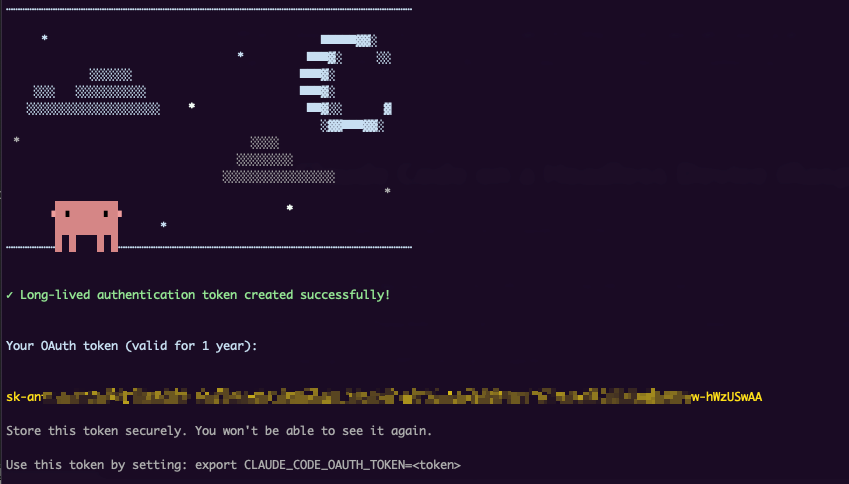
- SSH into the Raspberry Pi and install Claude with this command
curl -fsSL https://claude.ai/install.sh | bash - We’re going to add the token into memory by running this command:
echo 'export CLAUDE_CODE_OAUTH_TOKEN=<token>' >> ~/.bashrc– substitute your token here - Run
nano ~/.claude.jsonand add in"hasCompletedOnboarding"and set it totrue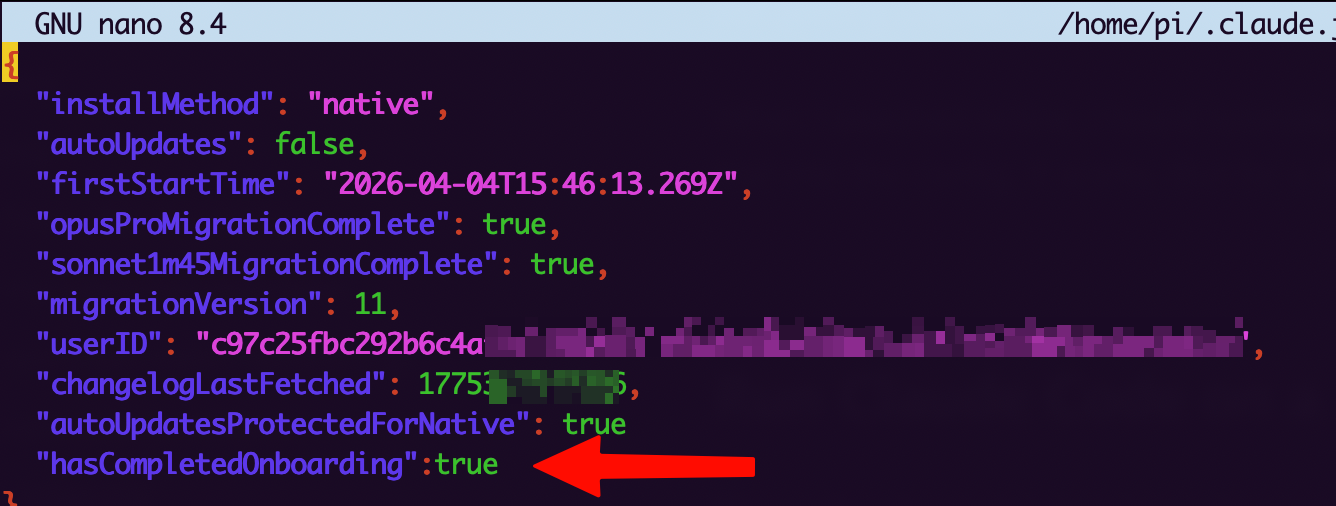
- Start Claude Code
claude - That’s it. You’re done.
You can now SSH into the Pi, type claude and use it as you would on a laptop. You can of course shut your laptop lid and it’ll continue to work :)
Control Claude agentically with something like Hermes Agent
A bigger unlock is to have something Openclaw or Hermes Agent control Claude via Tmux. You’d just instruct it via Slack / Telegram / Discord control
Give the following prompt to your agent and also read this → Hermes Agent on your Raspberry Pi
Install Tmux on this machine. Use it to control my signed-in session of Claude Code when I give you a coding task and specify that you should use Claude Code
–
Tried it and it doesn’t work anymore?